|
|
|
Full
Step-by-Step to install your downloads with a Mac
How to download, unzip and install objects, skins,
walls and floors in your game
|
| |
|
There's another FAQ about Mac and the sims,
that is not specific about downloads and installation. If you
have questions about Mac that aren't answered here, or if you're
curious about the subject, have a look at the FAQ
about the Sims & Mac.
|
| |
| What
do I need? |
|
To use the files offered on this site, you will
need to have:
- a Mac (system 8, 9 or X)
- an internet connection
- an internet browser like Microsoft Explorer or Netscape Communicator
(but you must have something like that to surf on my site! ;))
- an utility to unzip the downloaded files: StuffIt
Expander is the one we'll use as it's installed on your
Mac (and if you don't have it, you can still download it).
- the game "The Sims" (you don't need it to download,
but you won't be able to do whatever with these downloads without
the game! ;))
|
|
|
| How
do I download stuff? |
Objects
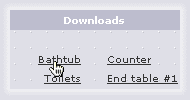
First, you need to put your cursor on the name
of the object you want to download (here: the bathtub). Then,
click.
Skins
The skins found on this site
have a particularity: they're distributed without mesh. So
it means you have to download the skin AND the mesh.
In short, the skin is the texture, and the mesh is the 3D
shape. In our example, we're going to download a formal dress
that our Sims will be able to buy in Downtown.

You also need to choose the version you want to download:
Some skins come in two versions: one "normal"
and one "buyable". The first one doesn't require
any expansion pack; the buyable one means that those skins
can be bought by your Sims in shops, on Downtown or Vacation
lots. Some buyable skins are made for Hot Date, some for
Vacation. The table below will help you to know what expansion
is needed for a particular skin:
| Ab. |
Name of
the expansion |
What skins
are concerned |
| Sims |
The Sims |
casual wear
no-buyable |
| HD |
Hot Date |
adult buyable pajama
adult buyable formal
adult buyable swimming-wear |
| SV |
Sims Vacations |
adult buyable winter wear
children buyable winter wear
children buyable pajama
children buyable formal
children buyable swimming-wear |
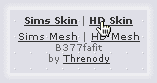
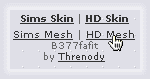
Click on the files you want to download. If you download a
HD skin, download the HD mesh. At the inverse, if you download
a Sims skin, download a Sims mesh.
Walls and floors
Put your cursor on the "Download the set". Then,
click.
|
|
|
| How
do I unzip and install the objects I've downloaded? |
|
Now, it will depend of the settings of your browser:
It might unzip your files automatically, as soon as files are
downloaded, or it might save them on your disk.
If your files are automatically unzipped, you can skip this
chapter.
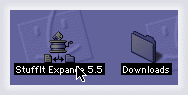
If your files are saved to disk, simply drag the folder where
they're stored (or the files themselves) on the icon of StuffIt.
|
|
|
| Where
do I install the stuff I've downloaded and unzipped? |
Objects
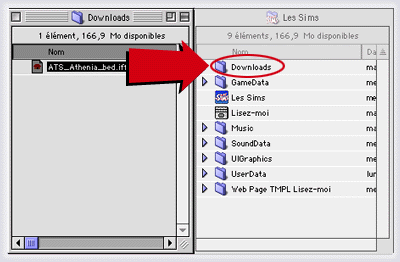
Objects (.iff files) can be installed in the Download folder,
located in the Sims folder:
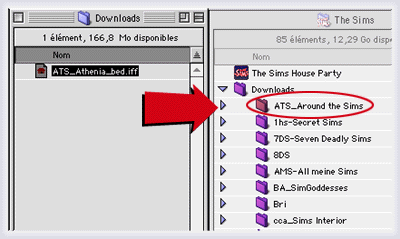
You can put subfolders in your Download folder, (but warning:
you can't put subfolders in Walls, Floors nor Skins folders!).
Personnally, I have a folder for every site, so it helps a bit
when you have tons of downloads:
Skins
Skins (.bmp, .cmx, .skn) need to be installed in the Skins folder,
located in your GameData folder (and the GameData folder is
located in the Sims folder):
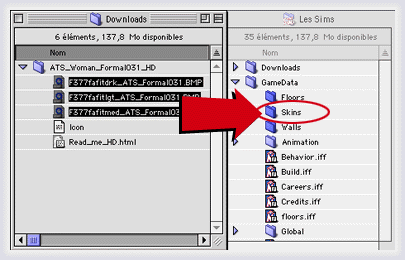
Don't bother with the "Icon_" file you might find
in the unzipped folder; it's there because I zipped the files
on Mac, but it's useless for you. You can put it to trash.
The mesh (.cmx and .skn) need to be installed in the Skins folder
too:
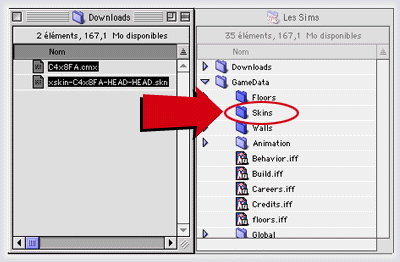
|
|
|
|
If your skins don't appear in your game (or if you
have only hands that apppear in a NPC you have downloaded),
be sure that your Skins folder doesn't content any folder. So
open your Skins folder and check:
Bad installation
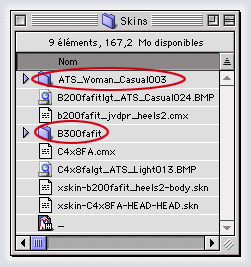
There's some folders in the Skins folder. Their content won't
show up in the game.
Correct installation
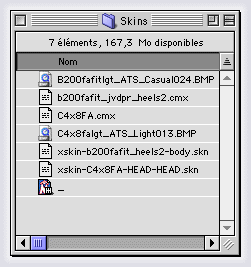 This folder contents only files. It's perfect!
=)
This folder contents only files. It's perfect!
=)
This folder should content only files, not a single
folder. If you see a folder somewhere, its content won't appear
in your game, so you need to open the folder and take the
files that are inside and move them in the Skins folder. You
can now delete the empty folder.
|
Floors
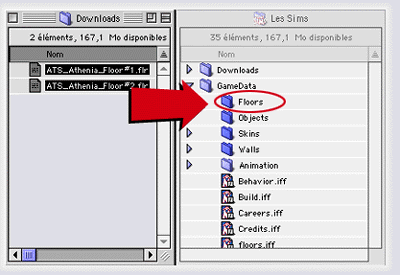
Floors (.flr files) need to be installed in the Floors folder,
located in your GameData folder (and the GameData folder is
located in the Sims folder):
 Walls
Walls
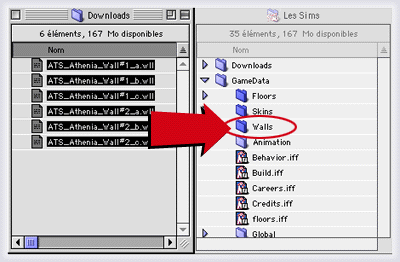
Walls (.wll) need to be installed in the Walls folder, located
in your GameData folder (and the GameData folder is located
in the Sims folder):
|
|
|
| Where
will I find the stuff I have downloaded? |
Objects
You'll find my objects in your Buy mode next time you'll play
to the Sims.
Most of the time, my objects are not categorized (except objects
for Downtown and objects in sets, for donators), it means you'll
find them under the "All" categories. But you can
categorize them by yourself with IFF
Taxi.
If you have downloaded windows, doors, columns, stairs or fireplaces,
you'll find them in the Build mode instead of the Buy mode.
Skins
If you have downloaded "normal" versions of a skin,
you'll find it when you create a new Sim or when you change
the clothes of an existing Sim, using the wardrobe.
If you have downloaded the "buyable" version, then
you'll need to send your Sims to Downtown or to Vacation, on
a shop where they will be able to buy their new formal wear,
lingerie, swimming-suit...
If you have downloaded the normal version of a skin but would
like to use it to replace a default skin, then read the FAQ
about skins.
Walls and Floors
You'll find the walls and floors in the Build mode, under "Walls"
and "Floors". Warning: if you don't have any expansion
pack, the number of walls is limited to 90, and the number of
floors to 63.
|
|
|
|
| Donations |
| |
| |
| |
| |
| |
Newsletter |
|
Search |
| |
| |
| |
| Help
for Mac |
| |
| |
|